Add it to the same notice
A notice holds as many events as you need, and you can add them long after it was published. A new event appears on the public notice as soon as it is saved.
-
1
Open the notice
Sign in, go to Notices in your account and open the notice.
-
2
Go to Funeral events
Choose Edit details, then Funeral events in the steps on the left.
-
3
Choose Add event
Pick the type, give it your own title, and enter the date, time and venue.
-
4
Save
The event is on the public notice as soon as it is saved.
A new event is added after the ones already on the notice, so a ceremony added months later sits below the funeral, where people expect to find it.
Open your noticesWhich type to choose
There is no separate type for almsgivings. Pick the closest type, then write the name your family uses in Custom title — it replaces the type on the public notice.
How much of it to show
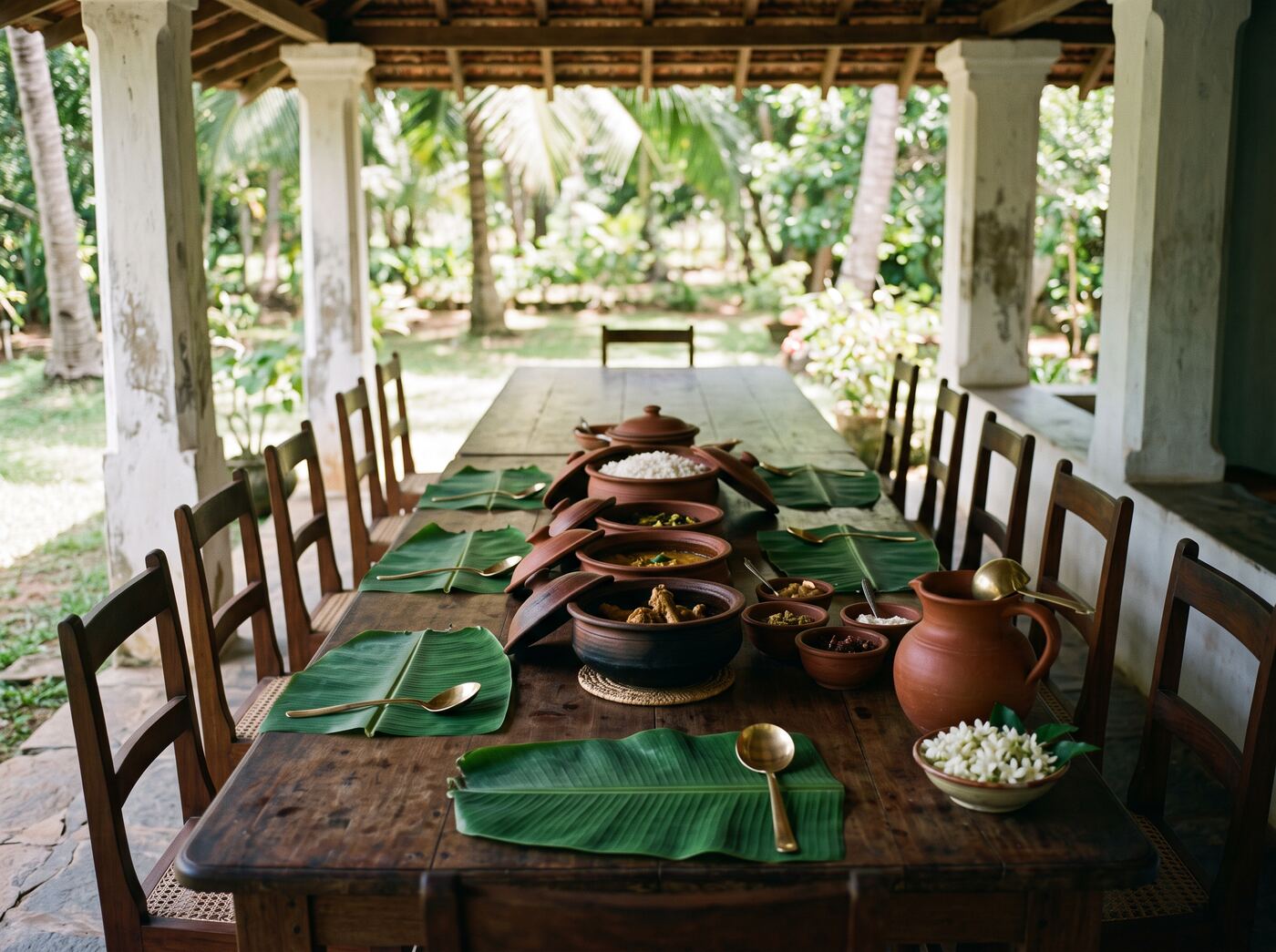
An almsgiving is often at home, and not every family wants the address online. Each event has its own visibility setting.
- Public — the venue and its full address are shown.
- Venue name only — the place is named but the address is hidden.
- Private — the event is kept on your notice but not shown publicly.
What each setting needs
A public event needs a date and a venue with its address or town; a venue-name-only event needs a date and the venue's name. A private event can be saved with neither, so you can add it now and fill in the details later.
Letting people know
Adding an event does not send anyone an email. The notice link is the thing to share — relatives who open it see the new event straight away, and people who follow the notice see the next upcoming event in their account.
If you would like help with the almsgiving itself, the funeral services directory lists dāna caterers alongside funeral homes.