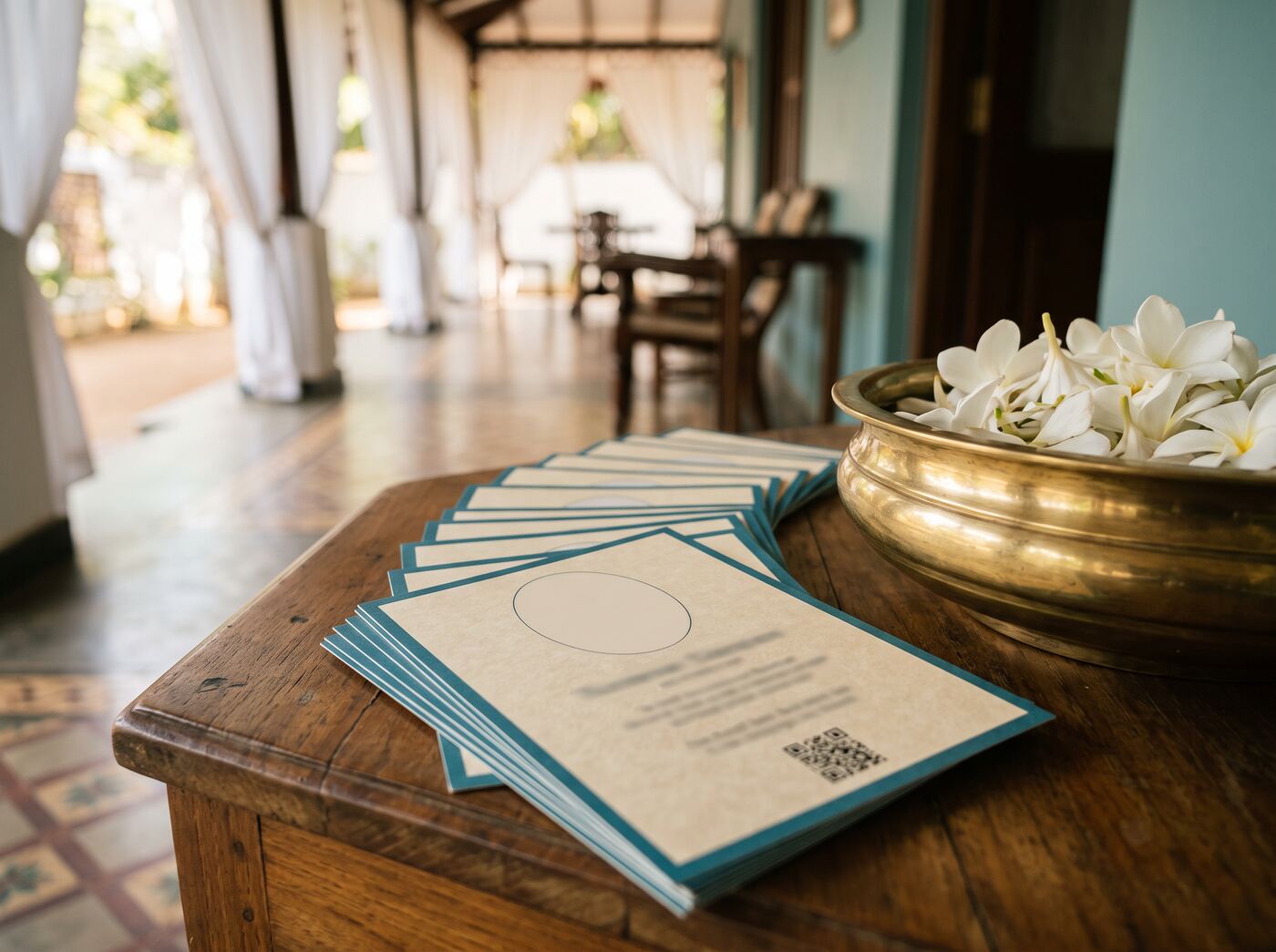
Making the card
-
1
Open the notice in your account
Under Share and print, choose Artwork designs.
-
2
Adjust what the design allows
Click something on the card to select it. Depending on the design you can move it, resize it, change its colour or reposition the photograph.
-
3
Download or share the size you need
Changes save as you go. Choose Download beside a size, and the image is made on your device. On a phone, Share sends it straight to WhatsApp or another app.
The card fills itself in from the notice. Private events and a private resting place are never printed on it, so nothing appears there that the notice does not already show.
Whoever looks after the notice can make the card: the family, or the funeral home until it hands the notice over.
Which size to download
Every size is a picture file, ready the moment you save.
Use as the notice picture puts the square card at the top of the notice in place of the photograph, if the family would rather show the card. If the notice is corrected later, it shows the photograph again until you next open the artwork, which makes a fresh card with the new details.
What the QR code opens
The code is a short link made for the notice — something like n.inmemory.lk/np2026 — and it never changes. Correct a spelling, add an almsgiving, move the funeral: the cards you have already printed still open the notice, and show it as it is now.
Once it is published
Scanning opens the notice, with the events, map and tributes.
While we check it
You can print now. Anyone who scans it is told the notice is coming shortly.
The same code and link are under Share and print on the notice in your account, if you only need the link to paste into a message.
Before you print
- Open the downloaded A4 image and check the name, the years and the service before sending it to a printer.
- Scan the code on one printed copy with your own phone. It takes a second and saves two hundred reprints.
- Keep the code at least 2.5 cm across. Most phones read it from arm's length at that size.
Taking a notice down stops the code
If the notice is removed, printed codes stop opening it. Anyone who scans one is told the notice could not be found.